

GTA 6 has just released and there are lots of settings that you can change to tweak your experience. Will be taking a look at all of the settings you should be changing to have the best possible time playing the game.
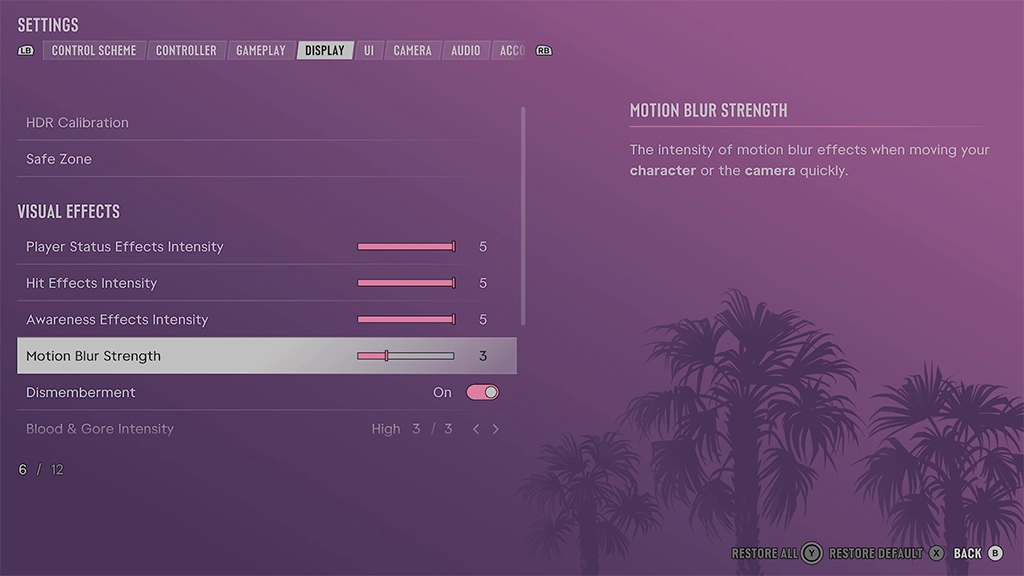
GTA VI runs out 30FPS and has high input latency. There are a couple of settings you can do to make the game feel a little better. Within the pause menu, select the Display tab. Scroll down to Motion Blur Strength and you’ll see it set to a default of 3.
I personally turn motion blur off in all my games but that’s when I’m playing at anything higher than 30FPS. Turning it up to 5 or more does make a nice improvement to the game’s feeling when moving the camera. Feel free slide the motion blur strength up even more to see which you prefer. Everyone has different tastes but this is certainly a game that feels smoother with it on. XBOX users also get a small, bonus advantage with VRR. Learn more about that here.
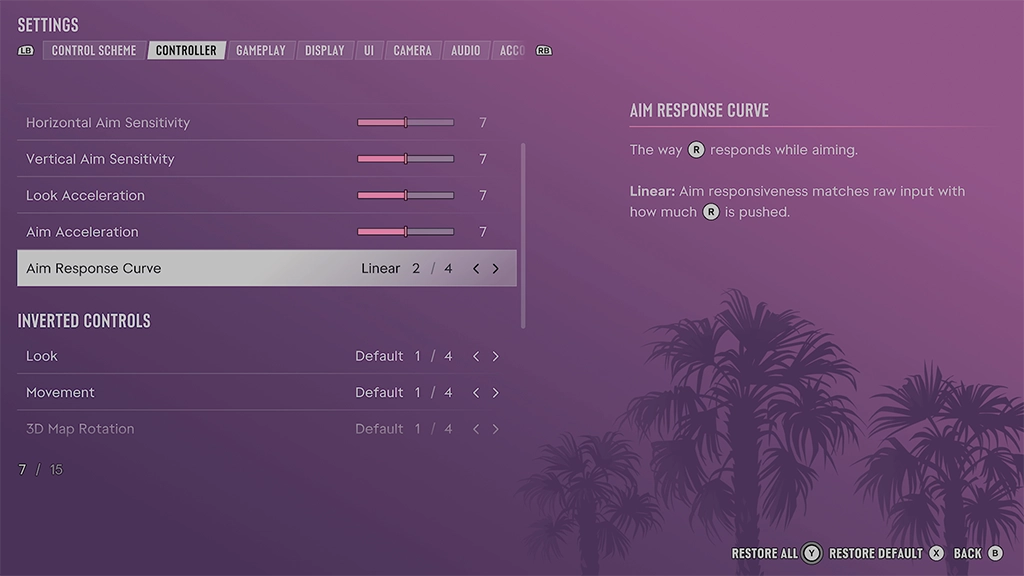
Changing your controller’s thumbstick sensitivity is also an important change to make. By default, it is set to 7. Turning it up by a point or two might offer a less sluggish feeling. This is another one of those personal preference changes so try different values to see what you prefer.
Click to enlarge
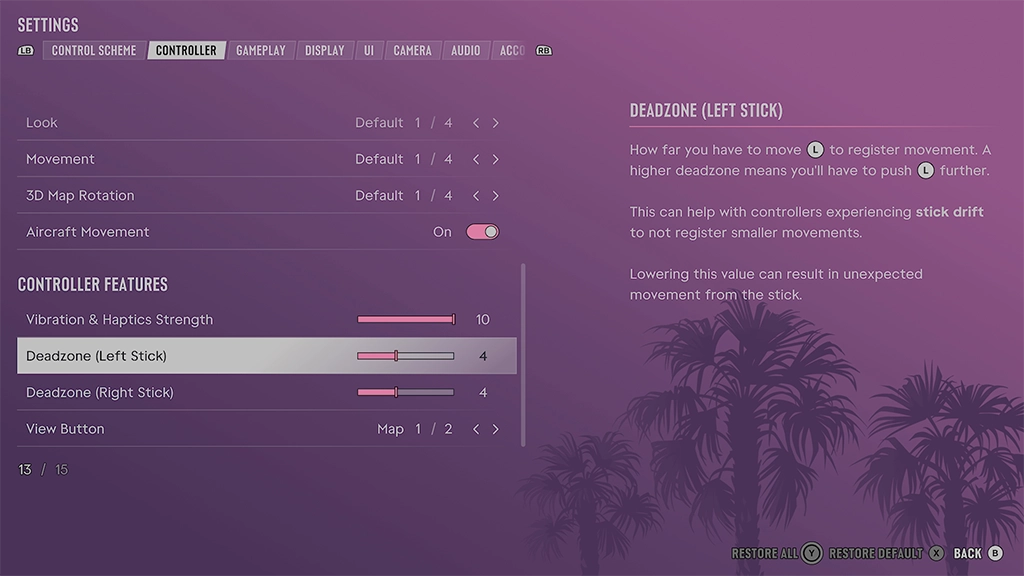
The game’s Deadszone default values are 4 but if you’re using a new controller, perhaps that shiny GTA VI PS5 controller, consider turning it down to 2. Those using some well-worn pads might need to turn it up a bit.
Another thumbstick setting to consider tweaking is Aim Response Curve. There are 4 different options and I’d recommend trying all 4 and seeing which feels best to you. Lots of shooting games have these settings now so if you see a one of the Aim Response Curve you use in other games within this GTA VI menu, try it out!
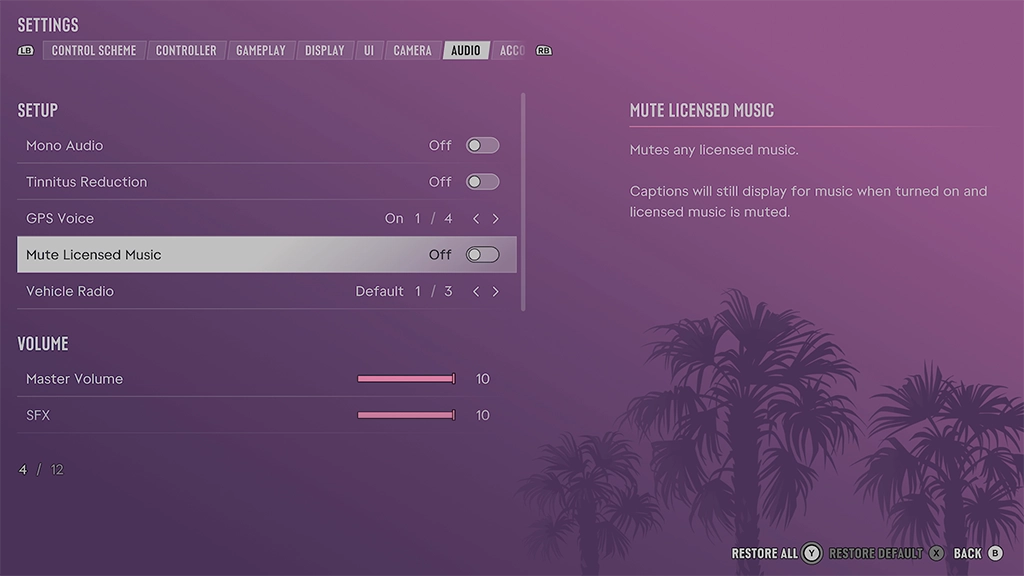
This next one is for content creators. There is the option to mute all licensed music to avoid copyright claims in videos or streams. In the settings menu, go to the audio tab then scroll down to “Mute Licensed Music”. Captions will still display for music when turned on and licensed music is muted. Some fans have also complained about radio music being too high and in this menu you can turn down its volume a little here too.
The game has multiple GPS settings within the audio tab. You can switch between a couple of voices, tones or turn sound off completely when navigating through Leonida.
Don’t feel like you’re cheating. It’s a singleplayer game. You can play the game how you want and GTA VI contains a number of accessibility settings. From simplifying mini-games to turning on reduced vehicle damage, there’s a range of options to ease your mind and they can be found under the gameplay tab within the setting menu.
Have you any settings you like using in GTA VI? Let us know down in the comment section below.
In recent GTA VI news, a few new backgrounds were added to PS5 and you can find out how to use them here. Plus, we have an image of the full map after all these years of waiting and speculating.
You can order your PS5 or XBOX copy with this link. Using the link to order the game will help support this website as we’ll earn a small commission. Thank you!
For more news on GTA VI, stay tuned to RockstarINTEL and sign up to our newsletter for a weekly round-up of all things Rockstar Games delivered straight to your inbox.
Subscribe to our newsletter!
The post Best GTA VI Settings You Need To Change appeared first on RockstarINTEL.
Continue reading...
Improving Performance And Feel
GTA VI runs out 30FPS and has high input latency. There are a couple of settings you can do to make the game feel a little better. Within the pause menu, select the Display tab. Scroll down to Motion Blur Strength and you’ll see it set to a default of 3.
I personally turn motion blur off in all my games but that’s when I’m playing at anything higher than 30FPS. Turning it up to 5 or more does make a nice improvement to the game’s feeling when moving the camera. Feel free slide the motion blur strength up even more to see which you prefer. Everyone has different tastes but this is certainly a game that feels smoother with it on. XBOX users also get a small, bonus advantage with VRR. Learn more about that here.
Changing your controller’s thumbstick sensitivity is also an important change to make. By default, it is set to 7. Turning it up by a point or two might offer a less sluggish feeling. This is another one of those personal preference changes so try different values to see what you prefer.
Click to enlarge
The game’s Deadszone default values are 4 but if you’re using a new controller, perhaps that shiny GTA VI PS5 controller, consider turning it down to 2. Those using some well-worn pads might need to turn it up a bit.
Another thumbstick setting to consider tweaking is Aim Response Curve. There are 4 different options and I’d recommend trying all 4 and seeing which feels best to you. Lots of shooting games have these settings now so if you see a one of the Aim Response Curve you use in other games within this GTA VI menu, try it out!
Music Settings
This next one is for content creators. There is the option to mute all licensed music to avoid copyright claims in videos or streams. In the settings menu, go to the audio tab then scroll down to “Mute Licensed Music”. Captions will still display for music when turned on and licensed music is muted. Some fans have also complained about radio music being too high and in this menu you can turn down its volume a little here too.
GPS Voice
The game has multiple GPS settings within the audio tab. You can switch between a couple of voices, tones or turn sound off completely when navigating through Leonida.
Making The Game Easier
Don’t feel like you’re cheating. It’s a singleplayer game. You can play the game how you want and GTA VI contains a number of accessibility settings. From simplifying mini-games to turning on reduced vehicle damage, there’s a range of options to ease your mind and they can be found under the gameplay tab within the setting menu.
Have you any settings you like using in GTA VI? Let us know down in the comment section below.
In recent GTA VI news, a few new backgrounds were added to PS5 and you can find out how to use them here. Plus, we have an image of the full map after all these years of waiting and speculating.
You can order your PS5 or XBOX copy with this link. Using the link to order the game will help support this website as we’ll earn a small commission. Thank you!
For more news on GTA VI, stay tuned to RockstarINTEL and sign up to our newsletter for a weekly round-up of all things Rockstar Games delivered straight to your inbox.
RockstarINTEL Bluesky
Grand Theft Auto News X
Red Dead News X
RockstarINTEL X
RockstarINTEL Instagram
RockstarINTEL Threads
RockstarINTEL Facebook
RockstarINTEL RSS Feed
RockstarINTEL TIKTOK
RockstarINTEL LinkedIn
Subscribe to our newsletter!
The post Best GTA VI Settings You Need To Change appeared first on RockstarINTEL.
Continue reading...

